



Need a clean PDF from a CSV? Convert it on Mac, Windows, or Google Sheets, then format it for printing so columns, dates, and totals stay readable.
CSV files are great for storing data, but they’re not built for sharing. The moment you email a raw CSV, someone opens it with the wrong separator, the columns shift, and the totals look off.
Converting CSV to PDF changes that. A PDF locks your layout, makes the file easier to review, and prints the same way every time.
In this guide, we’ll cover reliable CSV to PDF conversion on:
- Mac, using Numbers (and Excel for Mac if you have it).
- Windows, using Excel.
- Google Sheets, for a browser-based workflow that works anywhere.
We’ll also show you the quick formatting tweaks that make a PDF look like a report, not a spreadsheet dump.
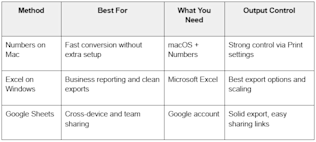
Quick Comparison: Best CSV to PDF Method
Best CSV to PDF method
If you only need a PDF quickly, Numbers or Google Sheets gets it done. If you need perfect page breaks and a polished report layout, Excel gives you the most control.
How to Convert CSV to PDF: Step-by-Step Guide
Step 1: Open the CSV in a Spreadsheet App
Start by opening the CSV in Numbers, Excel, or Google Sheets. These apps can detect columns, parse numbers, and keep your data in a table layout.
If your data imports into a single column, fix the delimiter during import. We’ll cover that in troubleshooting.
Step 2: Clean Up the Layout for PDF
Before exporting, take one minute to make it PDF-friendly. At minimum:
- Freeze the header row so it’s easy to reference while editing.
- Set the correct date and number formats.
- Adjust column widths so key fields don’t truncate.
This is the difference between a PDF you can present and a PDF you apologize for.
Step 3: Export or Print to PDF
Each platform has a slightly different path:
- Numbers uses “Export” or “Print” to create a PDF.
- Excel uses “Export” or “Save As” with PDF selected.
- Google Sheets uses “Download” > PDF.
Once the PDF is created, you can share it as-is, or run quick finishing steps like compression or adding a signature.
CSV to PDF on Mac Using Numbers
Numbers is the simplest built-in option for CSV to PDF on macOS. It opens CSV files smoothly and gives you solid control over paper size, scaling, and margins.
Step 1: Import the CSV into Numbers
Open Numbers, then go to “File” > “Open” and select your CSV. Numbers will import it into a new spreadsheet.
If your columns look wrong, close the file and re-import. Watch for delimiter and text encoding issues, especially with international exports.
Step 2: Format the Sheet for PDF
Click the column letters and drag boundaries to widen columns that cut off values. Then tidy up the view:
- Bold the header row.
- Set number formats for currency, percentages, and decimals.
- Use “Format” options to align totals and make key columns readable.
If the sheet is wide, switch to landscape before exporting. It usually fixes cramped tables.
Step 3: Export as PDF
Go to “File” > “Export To” > “PDF”. Choose the page size, orientation, and scaling. If your sheet spans multiple pages, reduce scaling slightly so important columns stay on one page.
Save the PDF with a clear name, like “Invoice_Report_Jan_2026.pdf”.
CSV to PDF on Mac Using Excel
If you have Excel on Mac, it’s another strong option, especially for large datasets and reports with page breaks.
Step 1: Open the CSV in Excel
Open Excel and select “File” > “Open”. Choose the CSV and confirm the delimiter if Excel prompts you.
If Excel doesn’t prompt and the columns import incorrectly, use “Data” > “From Text/CSV” to control the delimiter and encoding.
Step 2: Set Print Layout and Page Setup
Click “Page Layout” and set:
- Orientation to the landscape if the sheet is wide.
- Margins to narrow if you need more horizontal space.
- Print area to the specific table range if the sheet includes extra blank columns.
Add a header or footer if needed, like a report name or date. It helps when PDFs get forwarded.
Step 3: Export to PDF
Go to “File” > “Export”. Choose PDF and select “Best for printing” if you want a crisp report. Save it, then open the PDF to confirm columns and totals look right.
CSV to PDF on Windows Using Excel
For most Windows users, Excel is the cleanest CSV to PDF workflow. It gives you strong control over scaling, page breaks, and repeated header rows.
Step 1: Import the CSV Correctly
Open Excel and use “Data” > “From Text/CSV” instead of double-clicking the CSV. This helps you set the right delimiter and avoids imports in one column.
Confirm:
- Delimiter is a comma, a semicolon, or a tab, depending on the file.
- Data types are correct for dates and long ID numbers.
For long IDs, force text formatting so Excel doesn’t convert them into scientific notation.
Step 2: Make It Print-Ready
Go to “Page Layout” and adjust:
- “Print Area” to include only the table.
- “Scale to Fit” so the sheet fits one page wide when possible.
- “Print Titles” so the header row repeats on every page.
If the table is long, repeating the header row is a must. Otherwise, page two becomes a guessing game.
Step 3: Export as PDF
Go to “File” > “Export” > “Create PDF/XPS” or “File” > “Save As” and pick PDF as the file type. Choose a location and save.
Open the PDF right after exporting and check:
- Column headings are visible.
- Totals are not cut off.
- Page breaks don’t split rows in awkward places.
CSV to PDF Using Google Sheets
Google Sheets is a strong option when you need CSV to PDF conversion across devices. It works on Mac, Windows, and Chromebooks, and it’s easy to share with teammates before exporting.
Step 1: Upload the CSV to Google Sheets
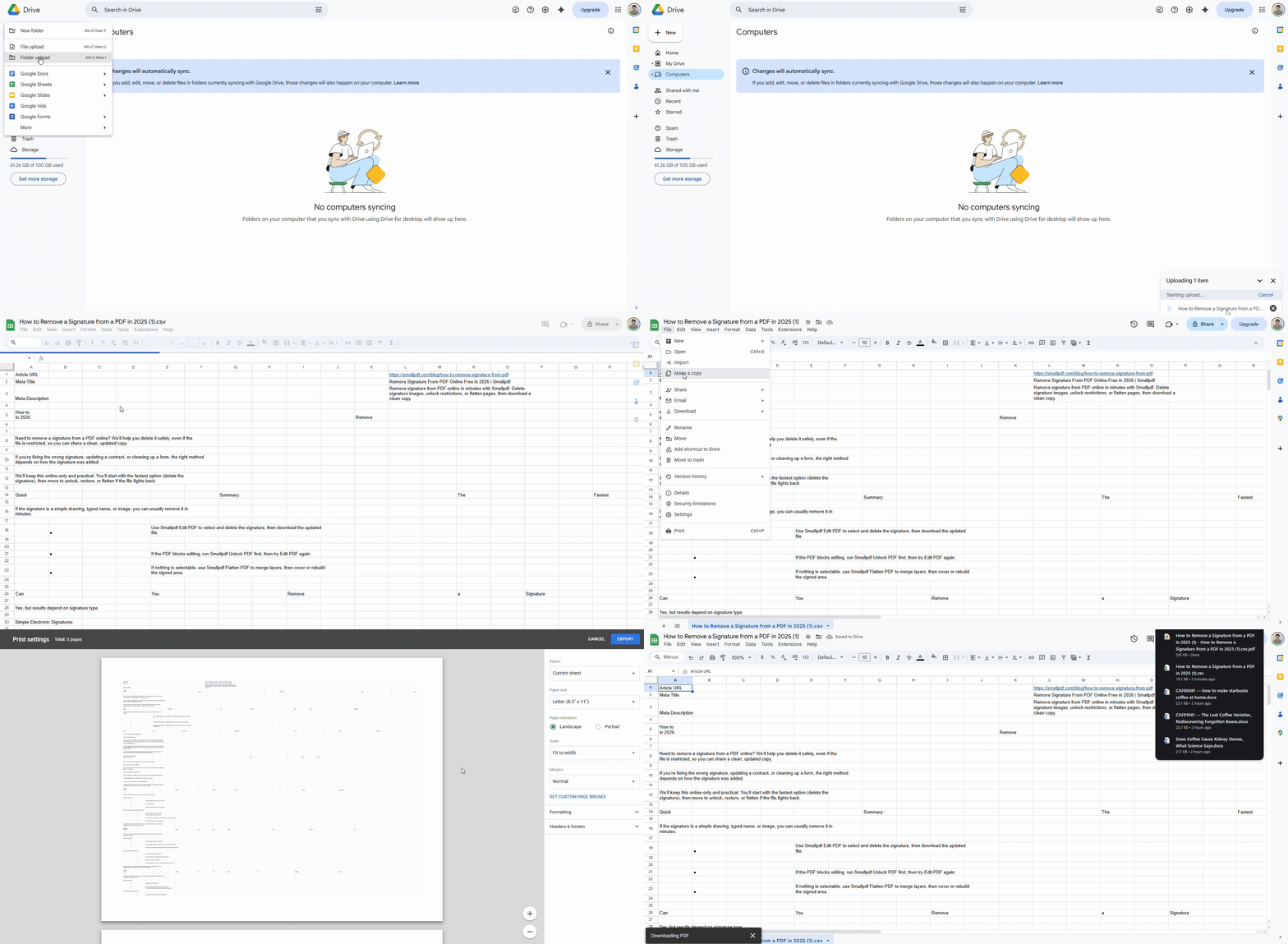
Open Google Drive and upload your CSV. Then open it with Google Sheets.
If the import splits columns incorrectly, use “File” > “Import” and pick the right separator. This is common with CSVs exported from European systems that use semicolons.
Step 2: Adjust Layout for PDF Export
Before exporting:
- Resize columns to avoid wrapping.
- Freeze the header row.
- Use “Format” to set currency, date, and number formats.
To avoid awkward PDF pages, go to “File” > “Print” first. This preview is the real control panel for the PDF layout.
Step 3: Download as PDF
From the print preview, select:
- Landscape if the sheet is wide.
- Fit to the width if columns are tight.
- Gridlines off if you want a cleaner report.
Then click “Export” and save as PDF.
CSV to PDF using Google Sheet
Fix Common CSV to PDF Problems
CSV to PDF conversion usually fails for one of a few predictable reasons. Here’s how to fix them fast.
- Everything imports into one column. Re-import and select the correct delimiter. Many CSVs use semicolons instead of commas.
- Dates change format automatically. Set the column format to Date before exporting. If needed, import dates as text, then convert.
- Long numbers show as 1.23E+10. Format the column as text, then re-paste the values.
- Columns cut off in the PDF. Switch to landscape, reduce scaling, or set “fit to one page wide” in print settings.
- The PDF looks cluttered. Turn off gridlines, widen key columns, and increase row height slightly for readability.
If you’re preparing a PDF to send or upload, it can also help to reduce file size. Once you’ve exported from Excel, Numbers, or Sheets, you can run the PDF through our Compress PDF to make sharing smoother, especially over email.
Make Your PDF Look Like a Real Report
If you want the PDF to feel professional, focus on three small upgrades.
First, add visual hierarchy. Bold headers, align currency columns, and keep totals consistent to two decimals.
Second, control the page breaks. Don’t let a page break slice a table mid-row. In Excel, adjust page breaks or set a print area that matches the table.
Third, add context. A simple header like “Monthly Sales Report” and a date in the footer makes the PDF easier to understand when it’s viewed weeks later.
Finish Your PDF and Share It Confidently
CSV to PDF conversion is simple once you use the right app and take control of the layout. Export from Numbers, Excel, or Google Sheets, then check scaling, headers, and page breaks.
If your PDF needs to be lighter, cleaner, or ready to sign, you can finish it off with Smallpdf features like Compress PDF, Edit PDF, or eSign before you send it out.
Frequently Asked Questions
How do I convert CSV to PDF without installing extra software?
On Mac, open the CSV in Numbers and export to PDF. On Windows, open it in Excel and export or save it as a PDF. Google Sheets also works in any browser.
Why does my CSV open in one column?
The delimiter is usually wrong. Re-import the file and choose the right separator, like a comma or a semicolon, so the data splits into columns.
What’s the best page setup for wide CSV tables?
Use landscape orientation and fit the sheet to one page wide. If the table is still too wide, hide non-essential columns or split the report into sections.
Can I convert CSV to PDF on my phone?
Yes, using Google Sheets on iOS or Android. Upload the CSV to Drive, open it in Sheets, then use the print preview to save as a PDF.
How do I make the exported PDF smaller for email?
Export the PDF, then compress it. Smallpdf Compress PDF can reduce file size while keeping text readable, which helps with email limits.
