


Need to swap a name, date, or clause in a PDF fast? We’ll help you find the text, update it safely, and keep the layout looking like nothing changed.
Let’s set expectations early. PDFs don’t work like Word documents. Most PDF editors don’t offer true batch Find and Replace the way Word does. Instead, you usually search for the text, then update each instance manually or convert the file into an editable format first.
In this guide, we’ll show two reliable ways to handle Find and Replace in a PDF using Smallpdf:
- Convert the PDF to Word, replace text there, then export back to PDF.
- Search the PDF, then update the text directly using our Edit PDF for faster fixes.
We’ll also cover scanned PDFs, password-protected files, and common formatting problems like font mismatches.
Quick Summary: Find and Replace Options in PDFs
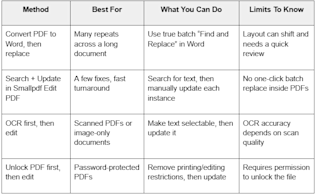
Find and replace options in PDFs
If you need to replace the same word 30 times, conversion is usually faster. If you need to fix a couple of spots without risking layout changes, editing the PDF directly is the smoother option.
Why PDFs Don’t Have Universal Find and Replace
PDFs are designed to preserve layout, not to behave like editable documents. Text can be split into separate objects, spacing may be fixed, and fonts may not be embedded the way you expect.
Still, you can achieve the same outcome using the workflows below. The trick is picking the method that matches your file and your goal.
How to Find and Replace Text in PDF: Step-by-Step Guide
Step 1: Search for the Text You Need to Change
Start by searching the PDF so you know where edits are needed.
Open your PDF in our PDF Reader and use the magnifying glass icon to search for the word, name, or phrase. Take note of each location where it appears. If the search returns nothing, your PDF may be scanned or flattened.
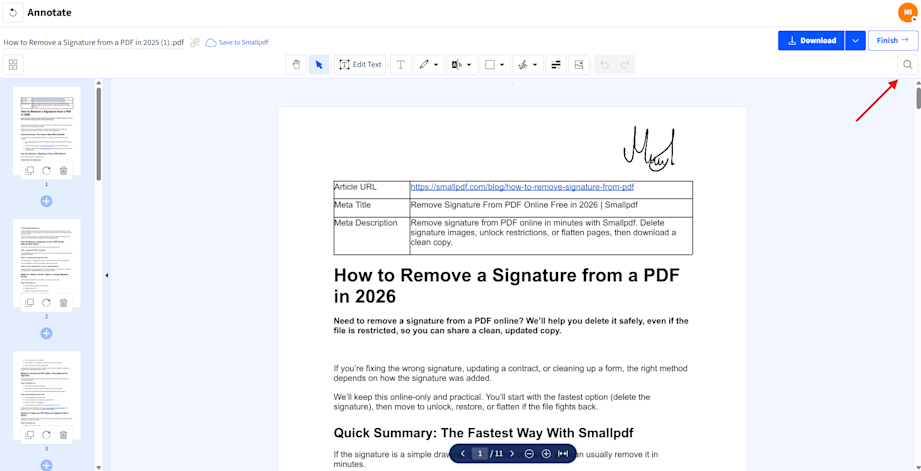
Search for the text you need to change
Step 2: Choose the Best Method for Your File
If the same text appears many times, converting to Word is usually the quickest way to replace everything at once. If you only need a few edits, editing directly in the PDF is often safer for layout.
We’ll show both approaches next.
Method 1: Convert PDF to Word, Replace Text, Export Back to PDF
This method is best when you need a true batch replacement across many pages, like updating a company name, correcting a repeated typo, or changing a date that appears throughout a contract draft.
Step 1: Convert Your PDF Using Smallpdf PDF to Word
Open PDF to Word and upload your file from your device, Google Drive, Dropbox, or OneDrive.
Choose the conversion option available for your file. If the PDF is scanned, you’ll need OCR to extract editable text.
Download the Word file once the conversion finishes.
Step 2: Use Word’s Find and Replace
Open the Word file and use “Find and Replace” to update the text in one pass. Use “Replace” to confirm each change, or “Replace All” if you’re confident it’s the right match.
Pay attention to capitalization and spacing. If the document includes variations like “Client” and “client,” replace them intentionally.
Step 3: Export Back to PDF
In Word, export the updated file as a PDF. Before you send it out, scan the layout quickly:
- Check headings and spacing.
- Confirm tables still line up.
- Review any pages with signatures, stamps, or form-like fields.
Conversion is powerful, but it can shift line breaks or spacing in complex layouts. A quick review avoids surprises.
Method 2: Search, Then Update Text in Smallpdf Edit PDF
This is the fastest approach when you need to fix a few spots and keep the PDF layout stable. It’s also a good choice when your PDF is already structured, and you don’t want conversion to alter the look.
Important note. Smallpdf doesn’t provide a one-click batch “find and replace” inside PDFs. What you can do is search for the text, then update each instance cleanly in the editor.
Step 1: Open Your File in Edit PDF
Open our Edit PDF, and upload the PDF from your device or cloud storage. Wait for it to load into the editor.
If the text is selectable, you can usually edit it more predictably. If it’s not selectable, jump to the scanned PDF section below.
Step 2: Update the Text Where Needed
Use your search notes from earlier, then click into the area you want to change and update the text. Work slowly through each occurrence so spacing stays consistent.
If your new text is longer, you may need to adjust placement slightly. If it’s shorter, watch for awkward gaps.
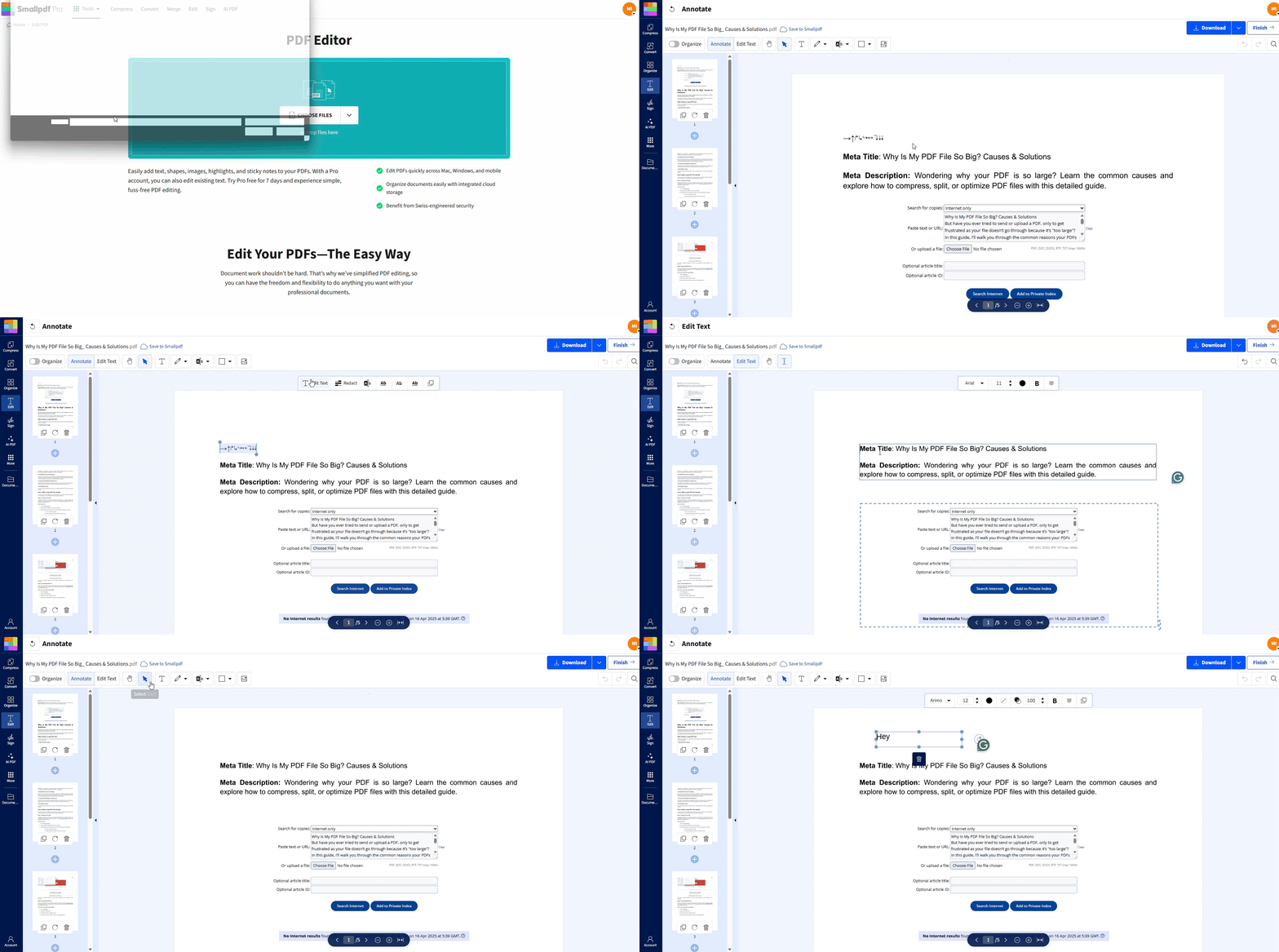
Replace text in PDF
Step 3: Recheck Formatting and Download
Before downloading, zoom in and check:
- Fonts match the surrounding text.
- Line spacing looks even.
- Nothing overlaps a table border or signature line.
Download the updated PDF, reopen it, and do one final scan through the edited pages.
If Search Doesn’t Work: Scanned or Image-Only PDFs
If you can’t select text, your PDF is likely a scanned image or a flattened file. Search won’t find anything because there’s no real text layer.
Step 1: Run OCR to Create Selectable Text
Use Smallpdf PDF OCR to convert the scan into selectable text. OCR reads the letters in the image and generates a searchable layer.
Once the OCR version is ready, search again using the magnifying glass. Then choose one of the two methods above, depending on how many changes you need.
If Your PDF Is Password-Protected
PDF security usually shows up in two different ways, and they don’t behave the same.
1) The PDF won’t open without a password
That’s an open password. If you know the password and you’re allowed to remove it, you can use Unlock PDF to unlock the file so it opens, and you can replace the text.
2) The PDF opens, but editing, copying, or printing is blocked
That’s a permissions restriction set by the file owner. The best option is to ask the document owner for:
- an unrestricted copy, or
- the original editable file (Word, Google Docs, InDesign export, etc.)
If you still need to update content, you can use a workaround like converting the PDF to Word and rebuilding the final PDF, but the results depend on how the PDF was created and how complex the layout is.
Troubleshooting: Formatting, Fonts, and Layout Issues
1. The Font Doesn’t Match After Editing
Many PDFs use embedded fonts that aren’t available for editing. If the font changes, try shortening the replacement text to reduce visibility, or use the Convert to Word method, so Word handles font substitution more gracefully.
2. The Text Shifts or Overlaps Other Content
This often happens when replacement text is longer than the original. Keep line length similar, and avoid adding extra spaces. If needed, adjust the text box position slightly and recheck at 100% zoom.
3. Replace All Would Be Risky
Even in Word, “Replace All” can create mistakes when the same word appears in different contexts. Replace in batches, then scan the results. For names and legal terms, manual confirmation is worth the extra minute.
4. The Search Finds Some Results, Not Others
Some PDFs store text in fragments, especially if they were exported from design software. If the search misses a few instances, use visual scanning on likely pages and update manually.
Alternative Automation Options That Don’t Break Your Layout
If your goal is speed, automation helps, but only if the file structure supports it.
- Converting to Word gives you the closest thing to real batch “find and replace.”
- OCR unlocks scanned text so the search works again.
- Manual updates in Edit PDF are the safest option for short documents and sensitive formatting.
For highly designed PDFs with complex layouts, conversion can change spacing. In those cases, editing directly in the PDF often produces fewer surprises.
The Fastest Way to Get the Right Result
If you need to replace almost everything, convert to Word, run Find and Replace, then export back to PDF.
If you only need a few fixes, search the document, then update text directly in Smallpdf Edit PDF for a cleaner, quicker workflow.
Frequently Asked Questions
How do I find and replace multiple text in a PDF?
Most PDFs don’t support batch replacement directly. Convert the PDF to Word, use Word’s “Find and Replace,” then export back to PDF.
How do I replace text in a scanned PDF?
Run OCR first to create selectable text. Then convert to Word for batch changes or update individual spots in Smallpdf Edit PDF.
Can I find and replace text directly in a PDF?
You can search for the text, then update each instance manually. There’s no universal one-click batch replace for PDFs.
Is it risky to convert a PDF to Word for replacements?
It can be, especially with complex layouts. Always review headings, tables, and page breaks after conversion before exporting back to PDF.
What if my PDF is password-protected?
If you have permission to edit it, use Smallpdf Unlock PDF to remove restrictions. Then edit the PDF or convert it to Word.
Why can’t I select or replace text in my PDF?
The file is likely scanned, flattened, or protected. OCR creates a text layer for scans. Unlocking removes editing restrictions.
Will formatting stay intact after I update text?
Manual PDF edits usually preserve layout better, but font matching can vary. If formatting is critical, keep replacements similar in length and review the final file carefully.
