Want a clickable PDF with working links and button-style CTAs? Build the links in Word first, then convert to PDF and polish it in Smallpdf.
When people search for how to make a clickable PDF, they usually want a file that feels interactive. That can mean text links to a website, a table of contents that jumps to sections, or button-style CTAs that actually open pages when clicked.
Below, we’ll cover what makes a PDF interactive, the simplest workflows that work reliably, and the Smallpdf steps that help you convert, clean up, and share the final PDF.
What Is an Interactive, Clickable PDF?
An interactive, clickable PDF is a PDF that responds to user actions. Instead of just showing text and images, it includes elements you can click, type into, or navigate through.
Common clickable elements include:
- Text or image hyperlinks that open web pages or other pages in the PDF
- Buttons that act as calls to action or navigation
- Fillable fields where people can type their information
- Checkboxes and radio buttons for simple choices
- Linked table of contents entries that jump to sections
You can use these elements in catalogs, presentations, course materials, applications, onboarding packets, and more.
Ways To Make a Clickable PDF
There’s more than one reliable way to create a clickable PDF. The best approach depends on what you’re starting from.
Here is a quick comparison of common approaches so you can pick what fits your workflow.
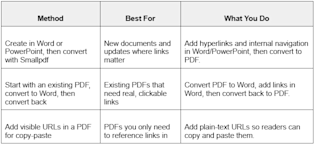
Ways to make a clickable PDF
If you need working links, the safest path is building them in Word or PowerPoint. If you already have a PDF, converting to Word first is usually the cleanest fix.
How To Make a Clickable PDF: Step-by-Step
We’ll keep the workflow as easy as possible so you can create your interactive PDF in just a few minutes.
Step 1: Prepare Your Document in Word or PowerPoint
Start in Word, PowerPoint, or Google Docs with a clear layout.
Do this before you convert:
- Add headings and consistent spacing.
- Create text that clearly signals a link, like “View pricing.”
- Leave room for button-style CTAs if you want them.
If you’re aiming for button-style links, create a shape or text box in Word or PowerPoint and style it like a button. The click behavior comes from the hyperlink you apply in the source file, not from PDF editing later.
Step 2: Add Hyperlinks and Navigation in the Source File
In Word or PowerPoint, add the actual links.
Common link types that convert well:
- Website links that open a page.
- Email links that open a mail app.
- Internal links to headings or slides, depending on the app.
After you add links, test them inside Word or PowerPoint before converting. If they don’t work there, they won’t work in the PDF.
Step 3: Convert Your File to PDF
Open PDF Converter, then upload your file from your device, Google Drive, Dropbox, or OneDrive.
Convert the file and download the PDF. Your hyperlinks and most navigation elements created in the source file should carry over into the PDF.
Step 4: Test the PDF in More Than One Viewer
Open the PDF in:
- A browser PDF reader.
- A desktop PDF viewer.
Click every link and confirm it opens the right destination. Some viewers handle internal navigation a bit differently, so testing in two places helps you catch issues early.
Step 5: Optimize and Share The Clickable PDF
Once links work, use Smallpdf to make the file easier to send and safer to share.
- Reduce file size with Compress PDF if the PDF is heavy.
- Split long PDFs into sections with Split PDF for easier reading.
- Add simple visual edits with Edit PDF, like adding text labels, headings, highlights, or covering outdated text with shapes.
- Protect sensitive files with Protect PDF before sending.
Edit PDF is the fastest way to add a ‘last updated’ note, fix a label, or visually mark sections, without rebuilding the whole document.
How To Add Hyperlinks in a PDF
If you already have a PDF and you need working links, you’ll want to move the file into an editable format first.
Option 1: Convert PDF to Word, Add Links, Convert Back
This is the most reliable way to create clickable links in a PDF you already have.
Step 1: Convert the PDF to Word
Open Smallpdf PDF to Word, upload the PDF from your device or cloud storage, then download the Word file.
Step 2: Add Links in Word
In Word, add hyperlinks to the text, images, or button-style shapes.
Keep links clean:
- Use short, readable link text.
- Make CTA text specific, like “Download the guide” instead of “Click here.”
Step 3: Convert the Updated Word File Back to PDF
Open Smallpdf Word to PDF, upload the edited Word file, then download your updated PDF.
Step 4: Test Links Again
Open the new PDF and click each link to confirm it works.

Add hyperlinks to make your PDFs interactive
Option 2: Add Visible URLs for Copy-Paste
If you can’t rebuild the PDF in Word, you can still make the document more useful by adding plain-text URLs.
In Edit PDF, add the URL as text in a readable format, such as:
- example.com/pricing
- example.com/support
Readers can copy and paste the URL into their browser. This doesn’t create a clickable link, but it does make the destination easy to access.
Interactive Elements You Can Add Beyond Links
Clickable PDFs are not just about links. You can add other interactive touches that guide people through your document.
1. Buttons and Calls To Action
Buttons help direct readers toward the next step:
- “Shop now” for catalogs and brochures.
- “Book a demo” for product sheets.
- “Start the quiz” or “Continue to section 2” in learning materials.

Interactive PDFs incorporate clickable buttons and CTAs
Want to test the layout before you add CTAs? Design and edit a brochure first, then you can place your button text where it makes sense.
2. Fillable Form Fields and Checkboxes
If you want to collect simple responses, you can combine a clickable PDF with fillable form behavior.
Common uses:
- Registration forms and simple sign-up sheets
- Feedback forms with checkboxes for options
- Basic order forms where people type in quantities or contact details
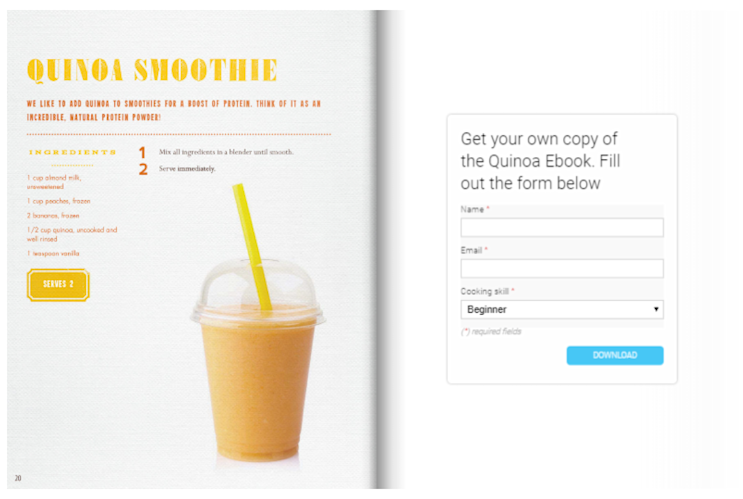
Interactive PDFs can include fillable forms
You can use our PDF Editor together with other Smallpdf features (like eSign) to build a workflow where people fill and sign your PDF online.
3. Images, Galleries, and Media
You can also think about:
- Image galleries where each photo links to a product page.
- Thumbnails that open larger versions of images on your website.
- Icons that link to your social media profiles or help pages.
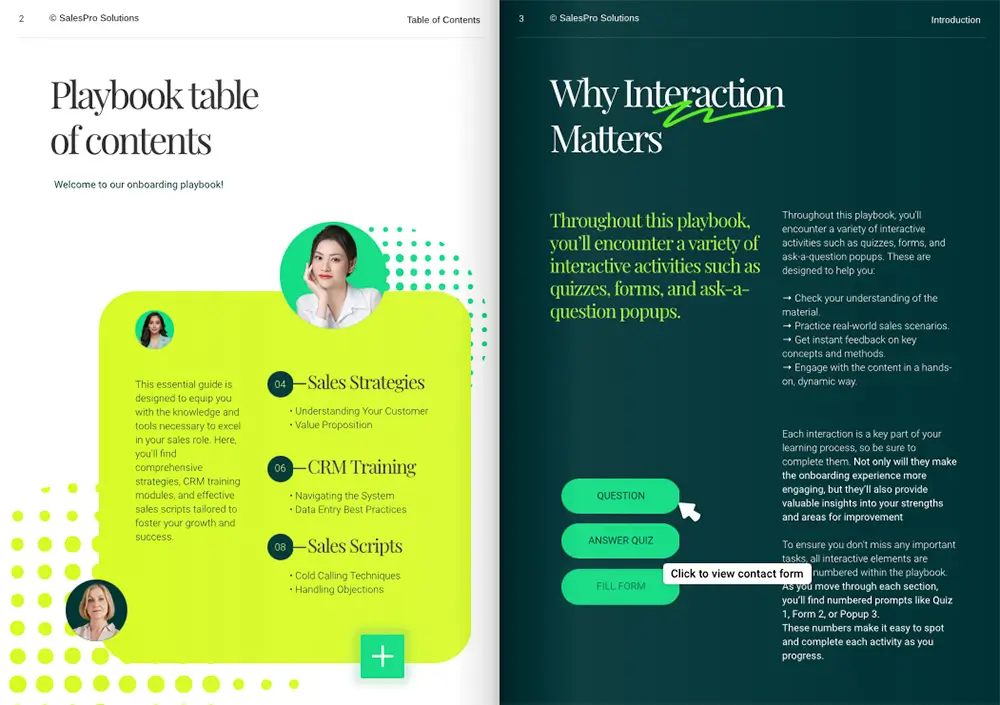
Interactive PDF with navigational links and fillable forms
Even without embedded video, combining images and hyperlinks can create a rich, guided experience inside your clickable PDF. But if you do need to add videos, check our complete guide on how to embed videos in a PDF.
Optimize and Share Your Clickable PDF
Once your links work, the next problems are usually file size and privacy.
Reduce File Size for Sharing
Big files can be hard to email or upload. To keep your clickable PDF light:
- Open Compress PDF.
- Upload your interactive PDF.
- Choose a compression level and download the optimized file. Your links remain intact while the file becomes easier to share.
Protect Sensitive Documents
If your clickable PDF includes confidential information:
- Use Protect PDF to add a password before sharing.
- Share the password through a separate channel like chat or SMS. You can also store your PDFs securely in cloud services and send links instead of attachments when appropriate.
Interactive PDF Examples People Use Most
If you want inspiration before creating your own clickable PDF, here are common formats that benefit the most from interactive elements.
- Product catalogs: Clickable product photos that open purchase pages or pricing sheets. Many brands use Flipsnack to design catalogue-style layouts, then turn them into clickable PDFs for sharing.
- Digital magazines: Linked table of contents, scrolling galleries, and embedded videos that make articles easier to navigate.
- Annual reports: Interactive charts, data highlights, and page-jump buttons that let readers explore financial sections at their own pace.
- Course materials: Embedded quizzes, navigation buttons, and supplemental videos so learners move through content smoothly.
- Marketing brochures: Strong CTAs, links to promotions, and lead-generation form fields that collect information directly in the PDF.
- Portfolio presentations: Image galleries, video testimonials, and clickable project tiles that showcase work in a polished, modern way.
A well-known example is the Electrolux interactive PDF catalog, created with Flipsnack. It combines product images, embedded video demonstrations, and navigation buttons to guide viewers through appliances and product lines in a visually rich experience.
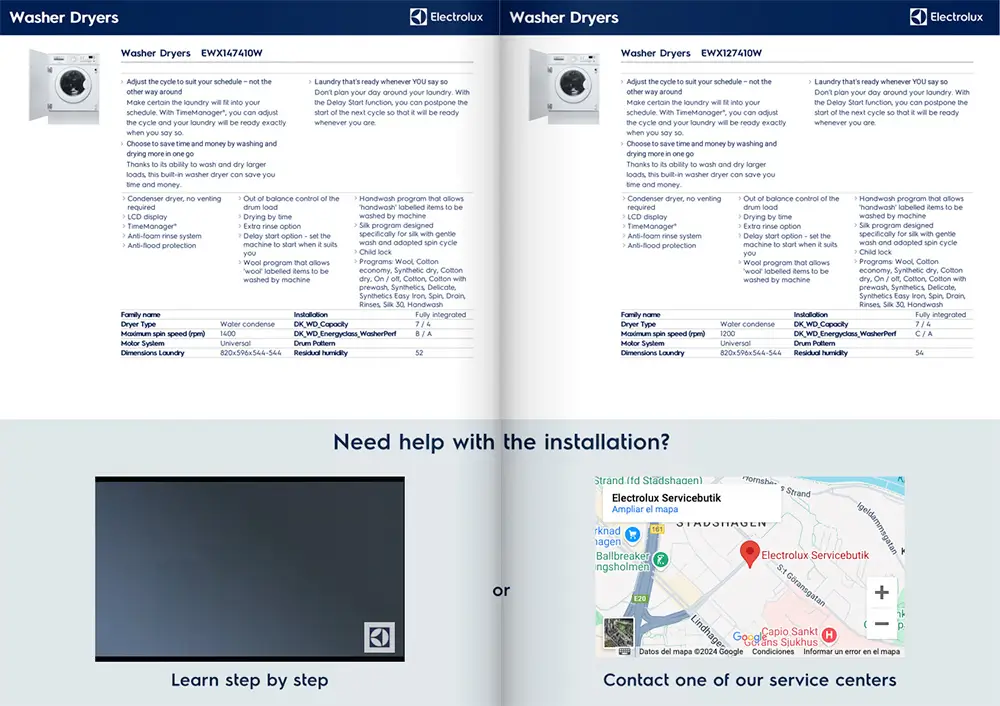
Interactive PDF with video and map from Electrolux
Start Creating Clickable PDFs Today
If you need a clickable PDF with real links, build the links in Word or PowerPoint first, then convert with Smallpdf. If you’re starting from an existing PDF, convert it to Word, add links there, then convert it back to PDF.
Once your PDF is clickable, Smallpdf helps you finish the job by compressing large files, splitting long documents, and protecting sensitive PDFs before you share them.
Frequently Asked Questions
How to make a PDF clickable?
Create the links in Word or PowerPoint first, then convert the file to PDF using Smallpdf. If you already have a PDF, convert it to Word, add links in Word, then convert back to PDF.
How do I make my PDF interactive free?
You can create a basic interactive PDF for free by adding hyperlinks in a source file and converting it to PDF. After that, you can use Smallpdf to compress, split, or protect the PDF before sharing.
How to make a PDF with clickable boxes?
Design the boxes in Word or PowerPoint using shapes, then add hyperlinks to those shapes in the source file. Convert to PDF and test the boxes in a PDF viewer.
How to make a PDF interactive with buttons?
Create button-style shapes in Word or PowerPoint, hyperlink them there, then convert to PDF. A button drawn later inside a PDF editor won’t behave like a real clickable CTA unless the links already exist.
Why is my PDF not clickable?
A PDF can look interactive without having real links. If text or shapes aren’t linked in the source file, they won’t click in the PDF. Rebuild links in Word or PowerPoint, then convert again.
How do I insert a clickable checkbox?
A clickable checkbox is a form field, not a drawn square. Create form checkboxes in form-capable software, then export to PDF. If your PDF already has form fields, you can fill and sign it with Smallpdf eSign as part of your workflow.