
Need a PDF page as a PNG you can drop into slides or emails? Convert PDF to PNG for free using built-in apps on Mac, Windows, and Linux.
Sometimes you don’t need the whole PDF. You need one page as a clean image. Maybe it’s a chart for a deck, a signed page for a ticketing system, or a screenshot-quality snippet that stays crisp on any screen.
PNG is a great choice for PDFs because it keeps text and lines sharp, supports transparency in some workflows, and avoids the fuzzy artifacts you often see in JPG.
Smallpdf doesn’t currently export PDFs as PNG files. So in this guide, we’ll stick to the fastest built-in methods that don’t require extra software.
Quick Steps to Convert PDF to PNG
If you want the fastest path, pick your device:
- Mac: Open the PDF in Preview, click “File” > “Export”, choose “PNG”, select a folder, and save.
- Windows: Open the PDF, take a high-quality export by printing to an image driver or using a built-in snip for single pages, then save as PNG.
- Linux: Open the PDF in a document viewer, export or print to file as an image, or use a built-in command if you’re comfortable with Terminal.
If you need multiple pages as separate PNGs, use the batch options in the FAQ and troubleshooting sections.
When PNG Beats PDF
Let’s say you’re sending a one-page invoice excerpt to a client in a chat app. PDFs often show as attachments that people don’t open right away. A PNG, on the other hand, appears inline as an image preview. Your client sees it instantly without downloading anything.
Or maybe you need a PDF chart in a slide deck. Copy-pasting from a PDF can distort fonts. Converting that page to PNG locks the visual exactly as it appears in the PDF.
How to Convert PDF to PNG: Step-by-Step Guide
Step 1: Decide Which Pages You Need
Before you export, decide if you need:
- One page only
- A page range
- Every page as a separate PNG
This matters because some built-in apps export the current page only, while others can handle multiple pages or batch exports.
Step 2: Pick Your Device Workflow
Use the method that matches your operating system. If your goal is maximum image quality, look for a resolution setting or export option that allows higher DPI.
Step 3: Confirm Quality and File Names
After exporting, open the PNG files and zoom in to check text edges. If it looks blurry, re-export at a higher quality or use the troubleshooting fixes below.
Convert PDF to PNG on Mac Using Preview
Preview is the simplest built-in option on macOS, and it supports PNG export directly.
Step 1: Open the PDF in Preview
Double-click the PDF. If it opens elsewhere, right-click and choose “Open With” > “Preview”.
Step 2: Export the Page as PNG
Click “File” > “Export”. In the format dropdown, choose “PNG”.
If Preview shows a quality control like “Quartz Filter”, leave it at the default first. You can refine if needed, but most pages export cleanly with the standard setting.
Step 3: Save and Check the PNG
Choose your folder, rename the file clearly, and click “Save”. Open the PNG and zoom to 100 percent and 200 percent to confirm clarity.
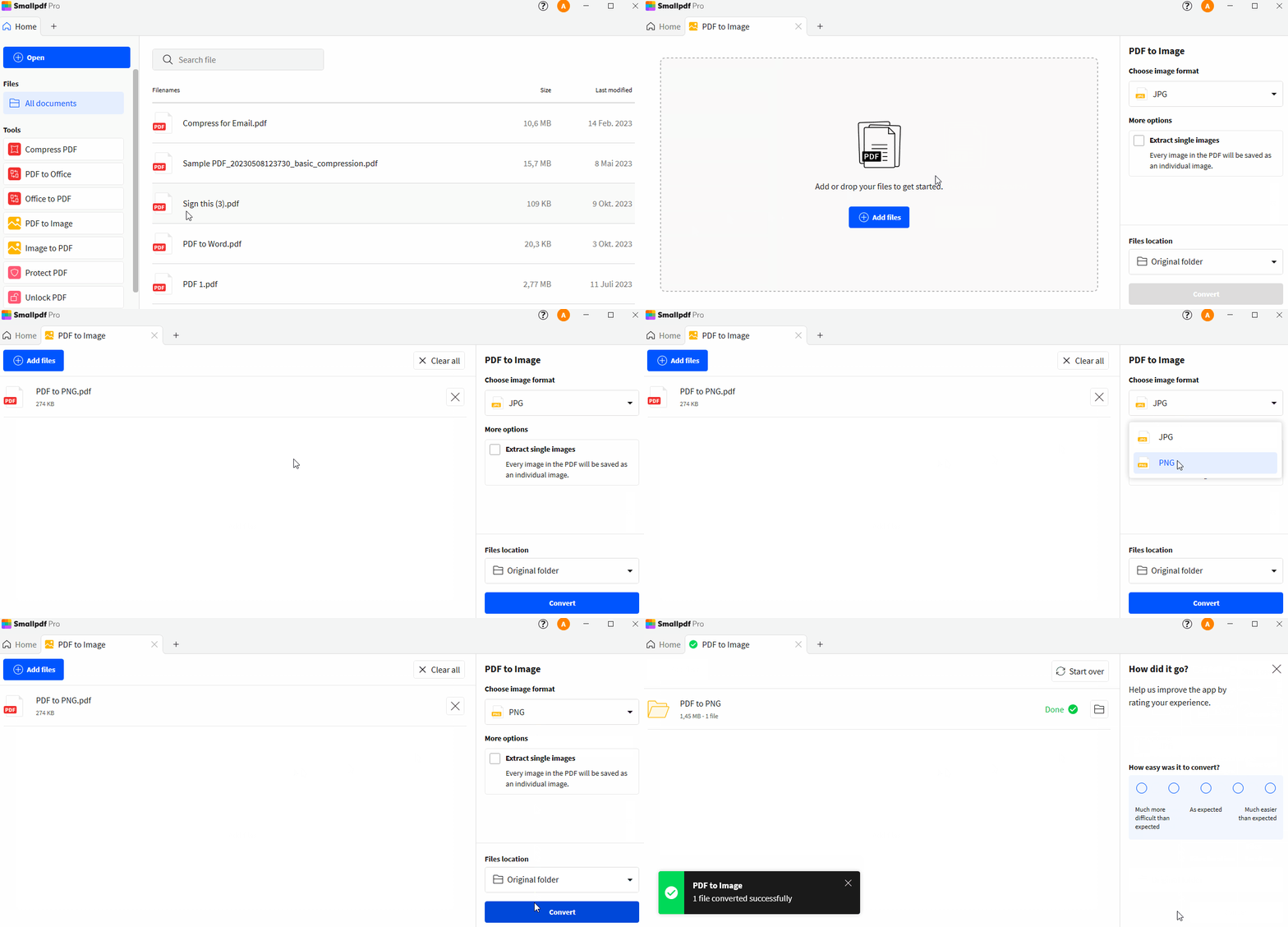
Convert PDF to PNG on Mac using Preview
If you need multiple pages, Preview’s export is best for one page at a time. For multi-page conversion, use the batch approach in the FAQ.
Convert PDF to PNG on Windows
Windows doesn’t include a universal “Export as PNG” button for PDFs the way Preview does. The most reliable built-in method depends on what you’re converting.
Step 1: Open the PDF in a PDF Reader
Open your PDF in Microsoft Edge or another PDF reader already installed. Zoom to the page you need.
Step 2: Save as PNG Using a Built-In Capture Method for Single Pages
For a single page, use a high-quality capture method:
- Open the page at a comfortable zoom level.
- Use Snipping Tool to capture the full page view.
- Save the capture as PNG.
This works best for single pages, quick visuals, and cases where a perfect export isn’t required.
Step 3: For Higher Quality, Use Print Options If Available
If your PDF viewer supports printing at a specific scale, set it to fit the page cleanly on-screen before capturing. The goal is to avoid cropped edges and fuzzy text.
If you need multi-page output as separate PNGs, see the advanced FAQ section. Built-in Windows options can be limited without adding software.
Convert PDF to PNG on Linux
Linux options vary by desktop environment, but you usually have a document viewer that can export or print pages.
Step 1: Open the PDF in Your Document Viewer
Most Linux setups use a viewer like Document Viewer. Open the PDF and navigate to the page you want.
Step 2: Export or Print to an Image File
Look for “File” > “Print” and see if there’s an output option that allows saving to a file. If a PNG export exists, choose it.
If you’re comfortable with Terminal, the most consistent batch method uses Poppler utilities, which many Linux distributions include.
PDF to PNG vs JPG vs TIFF: What to Choose
Different image formats fit different goals. PNG is often the safest default for documents.
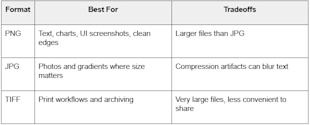
PDF to PNG vs JPG vs TIFF
If your PDF is mostly text, tables, or diagrams, PNG typically looks best. If you’re exporting a photo-heavy page, JPG might be lighter. TIFF is mainly for print production and specialized workflows.
Troubleshooting: Fix Common PDF to PNG Issues
1. My PNG Looks Blurry
Blurry exports usually come from low resolution. Fix it by:
- Exporting at a higher quality if the app offers it.
- Zooming in before capture on Windows so text renders sharper.
- Using a batch method that supports DPI settings, if you need perfect clarity.
2. The PNG Is Cropped or Missing Margins
This happens when the viewer doesn’t show the full page. Fit the page to the screen, then export or capture again. Avoid partial zoom views.
3. Colors Look Different Than the PDF
PNG can reflect display color profiles. If color accuracy matters for print, stick with the PDF, or confirm your workflow with your printer before exporting.
4. I Need Every Page as a Separate PNG
For multi-page PDFs, you’ll want a batch approach. Mac users can use more advanced workflows, and Linux users can use command-line conversion if available. Windows users may need a dedicated converter app for full batch export.
A Clean Result in Minutes
When you need a PDF page as an image, converting PDF to PNG images is usually the cleanest option.
Use Preview on Mac for the quickest export, use a built-in capture method on Windows for single pages, and use your Linux viewer or a batch conversion utility when you need multiple pages.
If you want to keep the file as a PDF but make it easier to share, Smallpdf can still help with finishing steps like compressing, protecting, or sharing the PDF.
Frequently Asked Questions
Can I convert PDF to PNG in bulk?
Yes, but it depends on your device. macOS Preview is best for one-page exports. Linux often supports batch conversion through built-in utilities. On Windows, batch conversion usually requires a dedicated converter app.
Why doesn’t my Windows PDF viewer export PNG directly?
Windows viewers vary. Some focus on viewing and annotation, not exporting image formats. For single pages, the Snipping Tool method is the fastest built-in workaround.
What resolution should I use for PDF to PNG images?
For on-screen use, a standard export usually works. For print or Zoom-heavy slides, aim for higher resolution. If your app supports DPI, a common range is 150 to 300 DPI, depending on the use.
How do I convert just one page, not the whole PDF?
Open the PDF and navigate to that page first. On Mac, export from Preview. On Windows, capture just that page. On Linux, export the current page if your viewer supports it.
Why are my exported PNG files so large?
PNG preserves detail without heavy compression artifacts, which increases file size. If you need smaller files, consider JPG for photo-heavy pages or compress the PNG files after export.
Can I convert PDF to PNG and keep transparency?
Sometimes. Transparency depends on the original PDF content and the export method. PNG supports transparency, but not every exporter preserves it.